


Garmin Pay with EastWest Visa Debit, Credit, and Mastercard Credit Cards
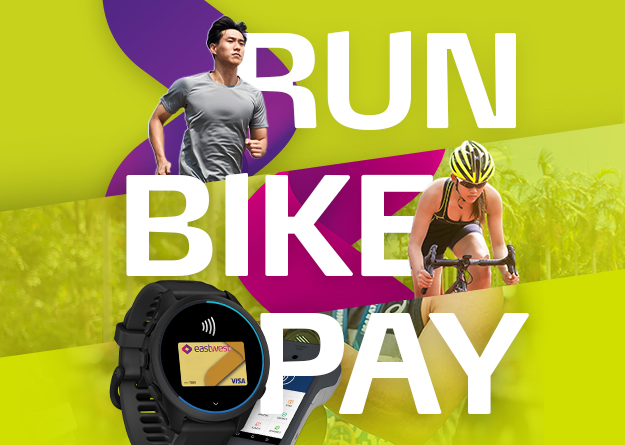
Pay on the go with EastWest and Garmin Pay. Enjoy fast, secure, and contactless payments straight from your Garmin watch.
At a Glance

Quick and Simple
Link your EastWest Credit or Debit Card and tap to pay instantly using your Garmin watch.

Secure Payments
Your card details are protected.

Pay Wherever
Use Garmin Pay anywhere contactless payments are accepted, even on select transit systems.
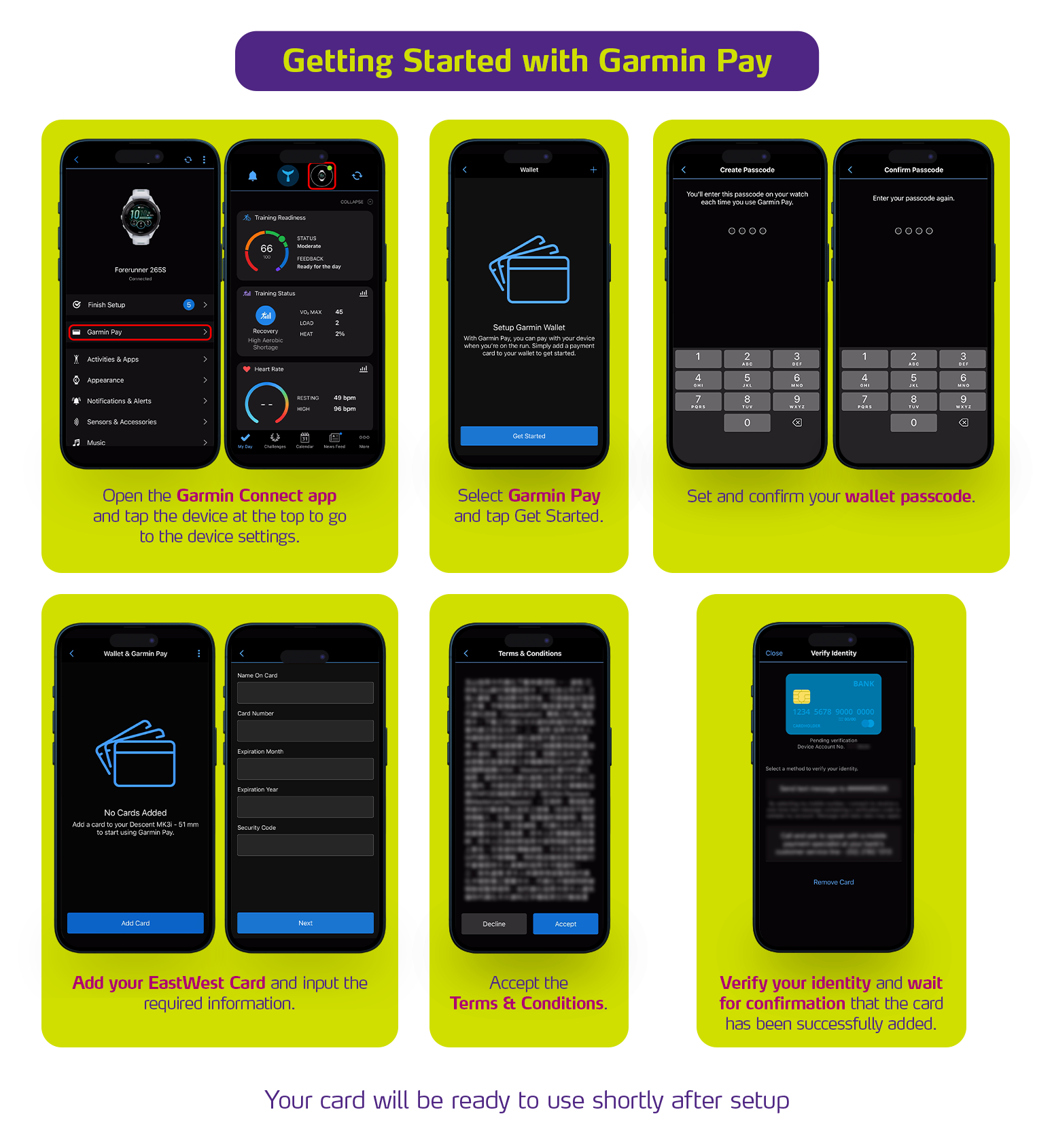
Setting Up Your Garmin Pay
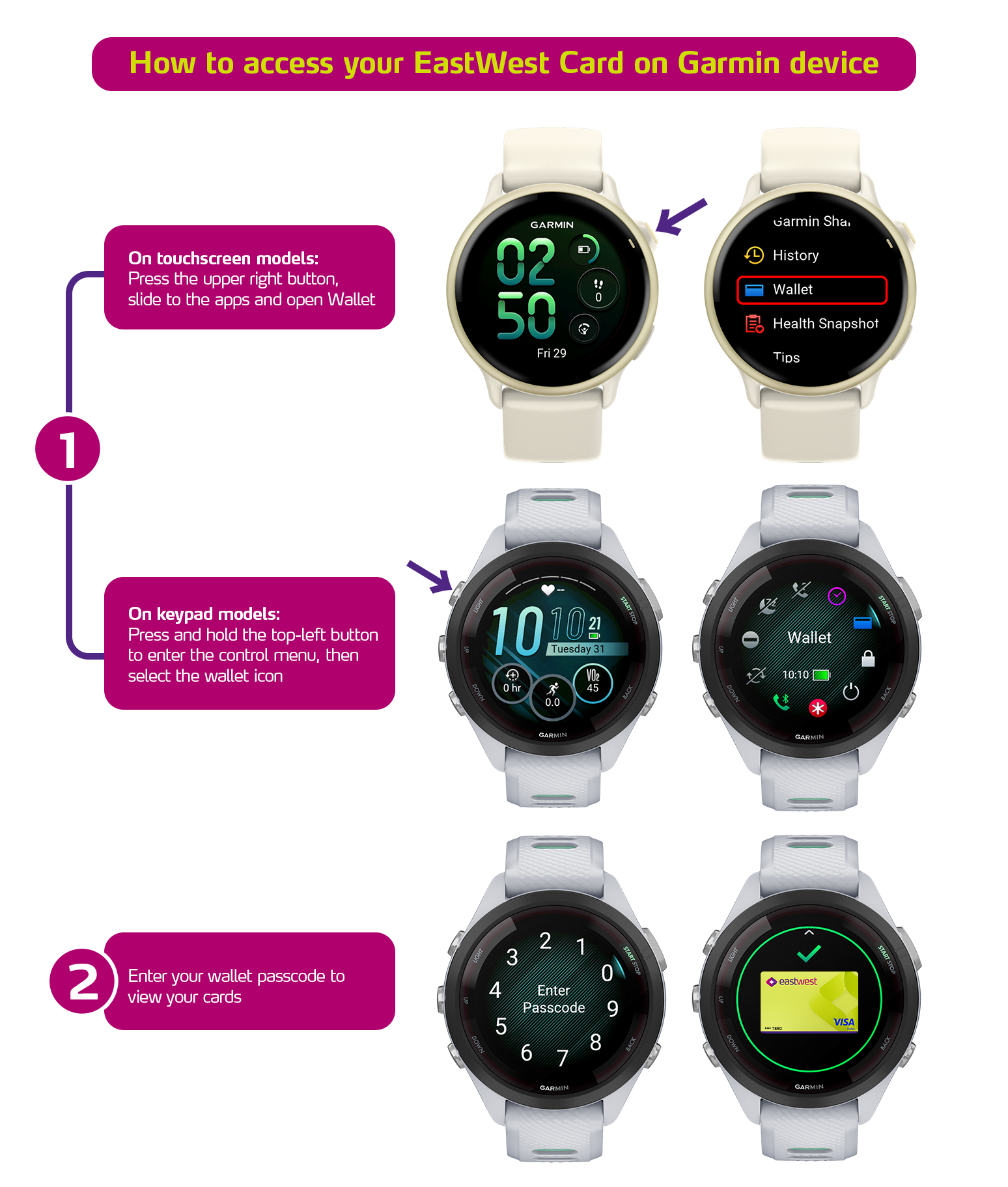
Accessing Your Card on a Garmin Device
Frequently Asked Questions
Card Setup / Eligibility
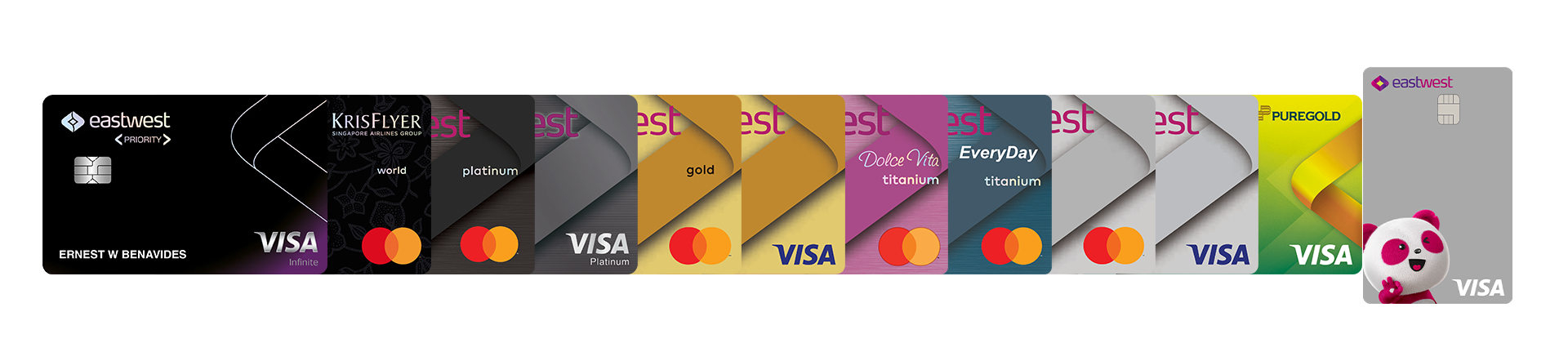
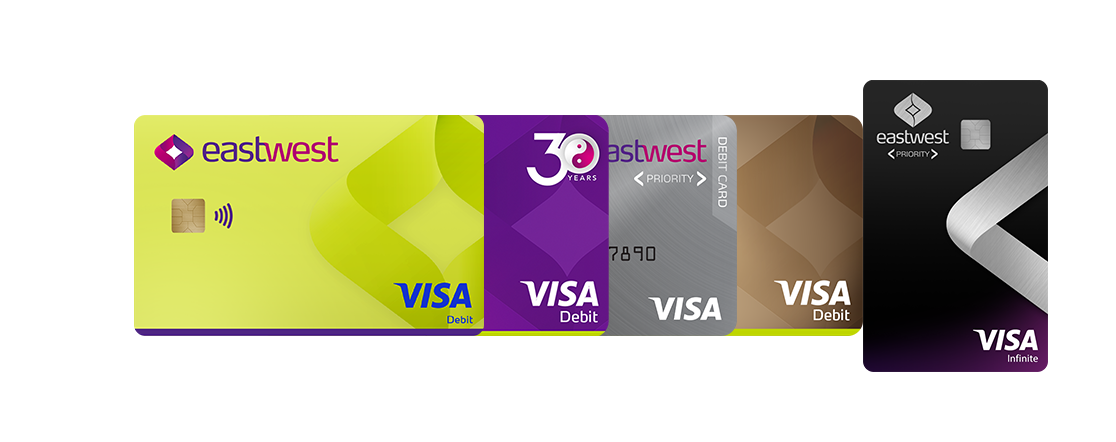
All active EastWest Credit and Debit Cards in good standing. Both Principal and Supplementary cardholders can use Garmin Pay.
Yes. You can add multiple cards on Garmin Pay.
You may link up to 10 cards.
Garmin Pay doesn’t allow you to set a default card. Your most recently used card will automatically appear first when you open your wallet.
Using the Service
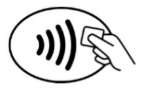
You can use Garmin Pay at any POS terminal that accepts contactless payments, indicated by this symbol.
No. Once your wallet is set up and your cards are added, you can make payments without an internet or phone connection.
The green checkmark means your watch has been detected by the payment terminal. However, the final approval depends on the terminal or the store’s payment system.
In some cases, merchants may ask for the last four digits of your card. For Garmin Pay transactions, you’ll need to provide the last four digits of your Device Account Number, not your physical card number. You can find this in your Garmin Connect app under your card details.
The Device Account Number is a unique number assigned to your card when it’s added to Garmin Pay.
Yes. You can use Garmin Pay anywhere your EastWest card is accepted.
Security
Yes. Garmin Pay uses advanced security features like tokenization to protect your card details, so your actual card number is never stored on your device or shared during transactions.
Access to your wallet is protected by a passcode, which is required periodically for added security. If an incorrect passcode is entered multiple times, your wallet will be locked to help keep your information safe.
Yes. Garmin Pay works only when your watch is worn. If you remove it, you’ll need to enter your passcode the next time you access your wallet.
No. Garmin Pay does not store your actual card or bank account details.
No. You only need to enter your passcode once every 24 hours while wearing your device.
If you remove your watch or it loses proper contact with your wrist, you’ll be asked to enter your passcode again before making a payment.
If you enter the wrong passcode three times, your wallet will be locked for security.
You can reset your passcode through the Garmin Connect app. If you’ve forgotten it, you’ll need to set up Garmin Pay again and re-add your cards.
Yes. Removing or suspending a card in Garmin Pay does not affect your physical card. You can continue using it as usual.
Troubleshooting / Support
Supported OS for Garmin Connect
Apple iOS support
- IOS 18 or higher
- Compatible with iPhone
Android
- Version 9.0 or higher
Supported Garmin Device for Garmin Pay
- fēnix 8
- fēnix 7
- Forerunner 970
- Forerunner 570
- Forerunner 265
- Forerunner 255
- Forerunner 165
- Venu 4
- Venu 3
- Venu X1
- vívoactive 6
- vívoactive 5
- Instinct 3
- Instinct 2
- Instinct Crossover
- Enduro 3
- MARQ Gen 2
- Approach S70
- Lily 2 Active
- Lily 2 Classic
Not supported
- Forerunner 55
- Older device without NFC
First, check the following:
- Make sure your card is issued by a participating bank
- Ensure your phone is connected to your Garmin device
- Check that your device is running the latest software
If you’re still having trouble, confirm that all your card details were entered correctly during setup.
Yes. For your security, your cards will be removed when you set up Garmin Pay on a new phone, even if you’re using the same Garmin Connect account. Simply add your cards again through the Garmin Connect app.
Open the Garmin Connect app and remove or suspend your cards to keep your account secure.
If you believe your card details may be compromised, contact EastWest 24-Hour Customer Service at (+632) 8888-1700 or email service@eastwestbanker.com immediately.
All cards in your Garmin Pay wallet will be deleted.
Go to the Garmin Connect app: Menu > Garmin Devices > Garmin Pay
From there, you can delete or suspend your wallet or cards.
If a card is suspended, it won’t be usable until you activate it again in the app.
In the Garmin Connect app, go to your device and select:
Garmin Pay > Reset Passcode, then follow the on-screen instructions.
- You’ll need to enter your new passcode the next time you make a payment
- Your current passcode is required to reset it
- If you’ve forgotten your passcode, you’ll need to reset Garmin Pay and add your cards again